Compare: See Two Versions of Your Room on One Slider
 The Idori team
·
·
7 min read
Compare turns any version of your room into a before and after slider. One tap puts it against the version it was made from, so you see exactly what the last change did. Press and hold, and you can put it against the original photo or any earlier version instead. Both images share the same frame, so you drag the divider across your actual room and the difference shows itself. It is how a vague feeling that one version is better becomes a decision you can explain.
- Compare, in one sentence
- A drag slider that overlays the version you are looking at on an earlier one: the version it was made from by default, or the Original or any other earlier version from the press-and-hold menu, so any two versions in a project can be judged in place.
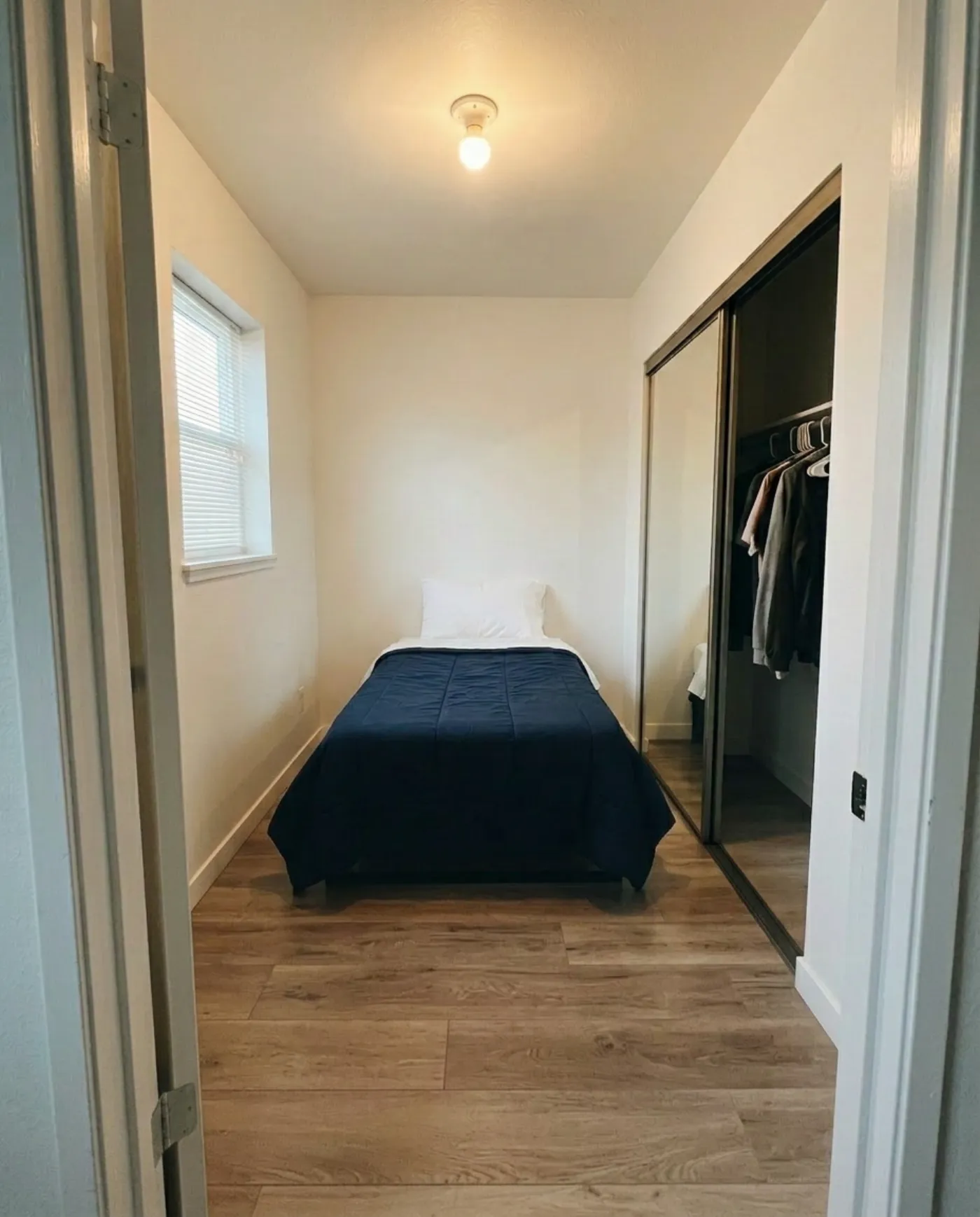
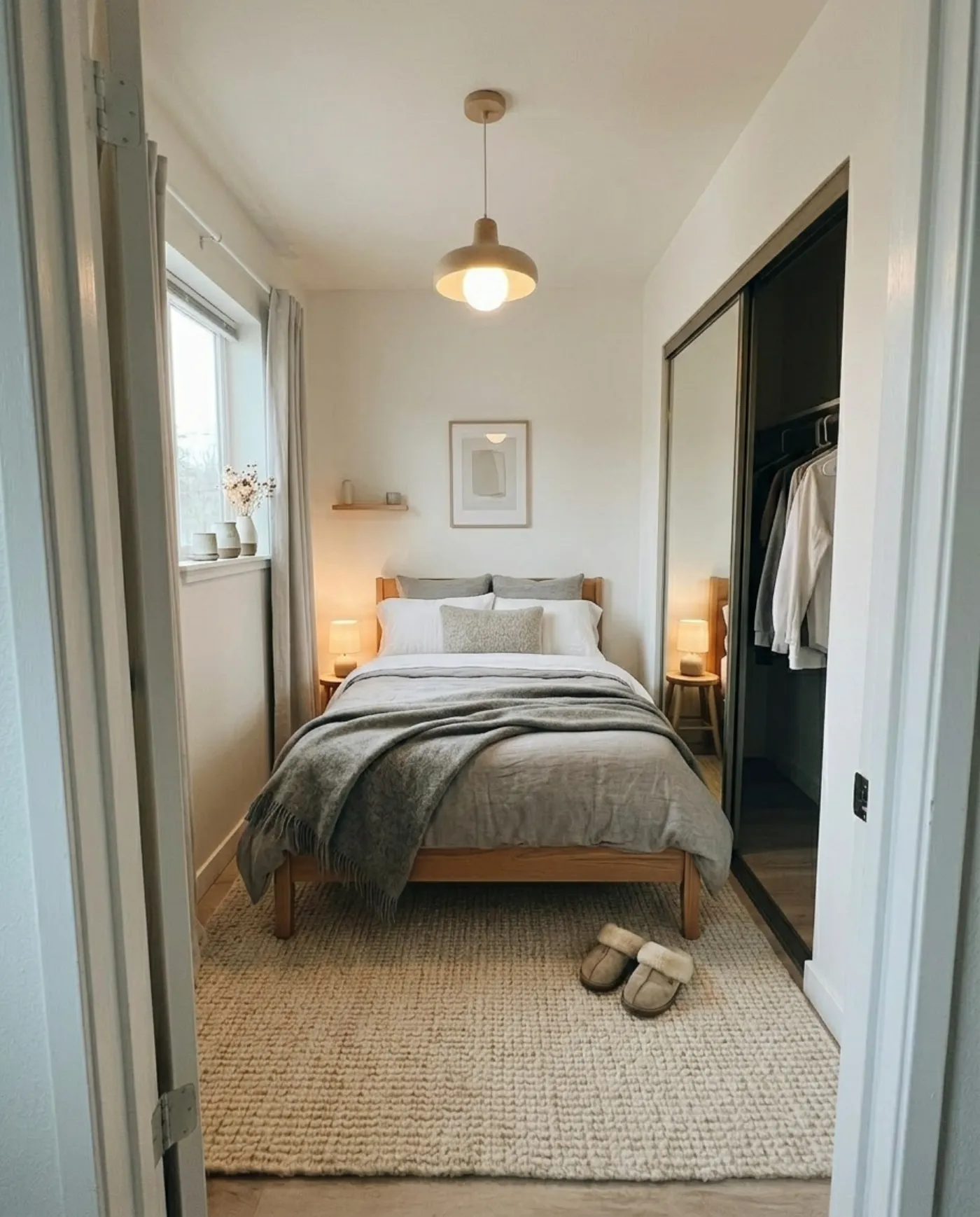 Original
v2
Why Compare exists
Human visual memory is not good at holding two complex scenes in mind. You may know one version feels better without being able to say why, and by the fifth generation you no longer remember what the second one looked like. As we wrote in A Room Isn't a Prompt. It's a Project., comparison turns vague preference into a more deliberate decision. Maybe the earlier version had better proportions. Maybe the newer one uses a material you prefer. Seen together, one is often clearly right.
Compare is also part of a larger belief: the best AI design tool shouldn't design for you. An app that hands you its latest image and moves on is deciding for you. An app that lets you put any two options side by side, on your own room, keeps the decision with you.
How Compare works
One tap: compare with the version before
Tap Compare on any version and the image turns into a before and after slider. By default the "before" is the image that version was made from, so you see exactly what the last change did: the rug and nothing else, or the whole style shift. Drag the divider left and right across the frame.
Press and hold: pick any earlier version
Press and hold the Compare button and a menu lists the Original and your other earlier versions, v1, v2, and so on. Choose one and the slider switches to it, with a check mark showing which version you are comparing against. This is how you answer the question that matters most late in a project: is v7 actually better than where I started, or just different?
It works from any point in your history
Compare is not limited to the newest version. Swipe back through your Version History to v3 and compare it with the Original, or with v1. Any version can be compared with any version that came before it, so any two versions of the room can be put on the same slider.
Why a slider, not two pictures
Two images next to each other ask you to match details across a gap. A slider over the same frame shows the difference in place, at full size, on your actual room. Because Idori keeps the walls, window, and camera angle of your photo, the only things that move under the divider are the things that changed. On an iPad, the slider is large enough to judge a whole wall at once.
A worked example: one small bedroom
- v1: one change. A Freeform Prompt adds a large chunky jute rug and keeps everything else. Tap Compare: only the floor moves under the divider. The rug warms the room without touching anything else, so it stays.
- v2: a direction. A warm Scandinavian style on top of v1. Tap Compare and you see what the style did to the rug version. Press and hold, choose Original, and drag: same window, same closet, same proportions, a different room.
- The check. Before ordering anything, compare the version you like against the Original one last time. If the change still reads as an improvement at full size, it is the one to take to the store.
What Compare does not do
Two versions at a time. Compare is a single slider between the version you are on and one earlier version or the Original. There is no grid of three or four options on one screen.
It compares against earlier versions. The slider puts the version you are viewing over one that came before it. To compare two later versions, open the later one and pick the earlier one from the menu.
It compares within one project. A branched project has its own history, so its versions cannot be put on a slider against versions in the project it came from.
It is a visual comparison, not a measurement. Compare shows how two versions look on your photo. It does not measure furniture, check clearances, or confirm that a product fits.
Getting the most out of it
- Change one thing per version. Compare is sharpest when a single decision sits under the divider. Spot Edit changes only the spots you pin, which makes every comparison clean.
- Compare against the Original before you decide. Late in a project, the version just before the latest is the wrong baseline. Pick Original to see the whole distance you have traveled.
- Drag slowly across the part you care about. Stop the divider on the sofa, the wall, or the floor and move it back and forth over just that area.
- Use it to rearrange, too. When you rearrange your room from a photo, comparing two layouts on the same frame shows whether the walkway really opened up.
Compare versions of your own room
Make a change, tap Compare, and drag. Then hold Compare and put it against the photo you started with. On iPhone and iPad.
Download IdoriQuestions people ask
Yes. Tap Compare on any version and it becomes a before and after drag slider against the version it was made from. Press and hold Compare to choose the Original or another earlier version instead. Any version can be compared with any version that came before it, on iPhone and iPad.
Yes. Press and hold the Compare button on any version and choose Original from the menu. The slider then overlays that version on the photo you started with.
No. Compare shows two versions at a time on one slider. To review several, swipe through your Version History and compare each candidate against the same baseline, such as the Original.
Because both versions share the same frame, a slider shows the difference in place, at full size, on your actual room. Two separate pictures ask your eye to match details across a gap, which is much harder.
Yes. Each arrangement you try becomes a version, so you can put two layouts on the same slider and see whether the walkway opened up or the seating group works before you move anything. Compare is visual and does not measure clearances.
Idori keeps every version of a room in one project and lets you compare any version against an earlier one or the original photo with a drag slider, then branch from any earlier version to explore another direction without losing your work.