Style Match: Make Your Room Look Like a Photo You Love
 The Idori team
·
·
8 min read
Style Match is how you make your room look like a photo you love. Saw a living room on Pinterest, a bedroom on Instagram, a kitchen in a hotel? Attach that image to the prompt box in Idori, as a screenshot, a photo from your library, a picture you take, or a paste, and Idori carries its style onto a photo of your own room: the palette, the materials, the furniture, the decor, the light. Your walls, windows, layout, and camera angle stay yours. No photo yet? Open Inspiration, the library of more than 1,000 example rooms in Idori's 40+ styles, find one you like, and tap Try on my space. Style Match is free.
- Style Match, in one sentence
- Attach one image you love, from anywhere or from the Inspiration library, and Idori matches its style on a photo of your real room while keeping your architecture, layout, and camera angle.
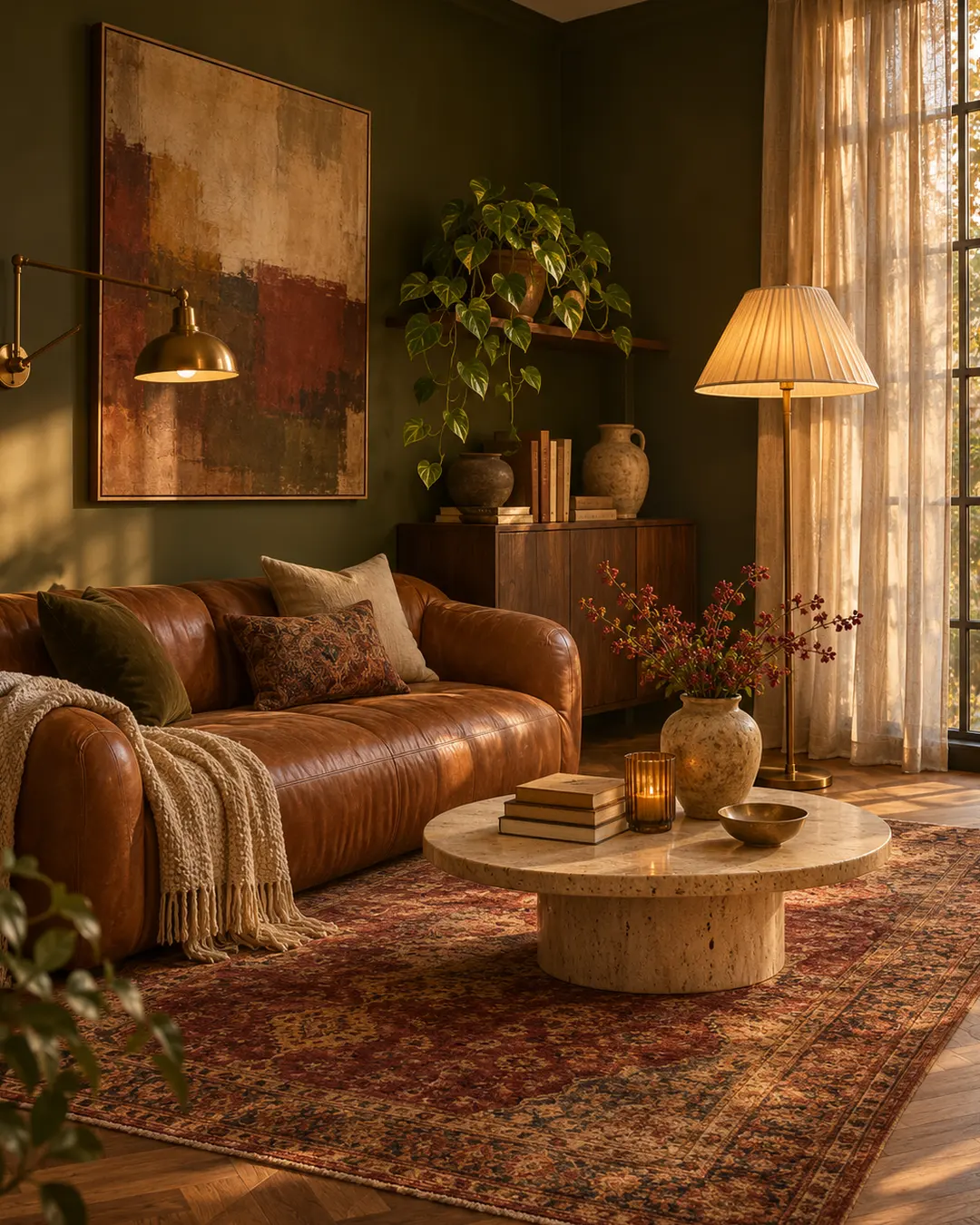 Style Match photo
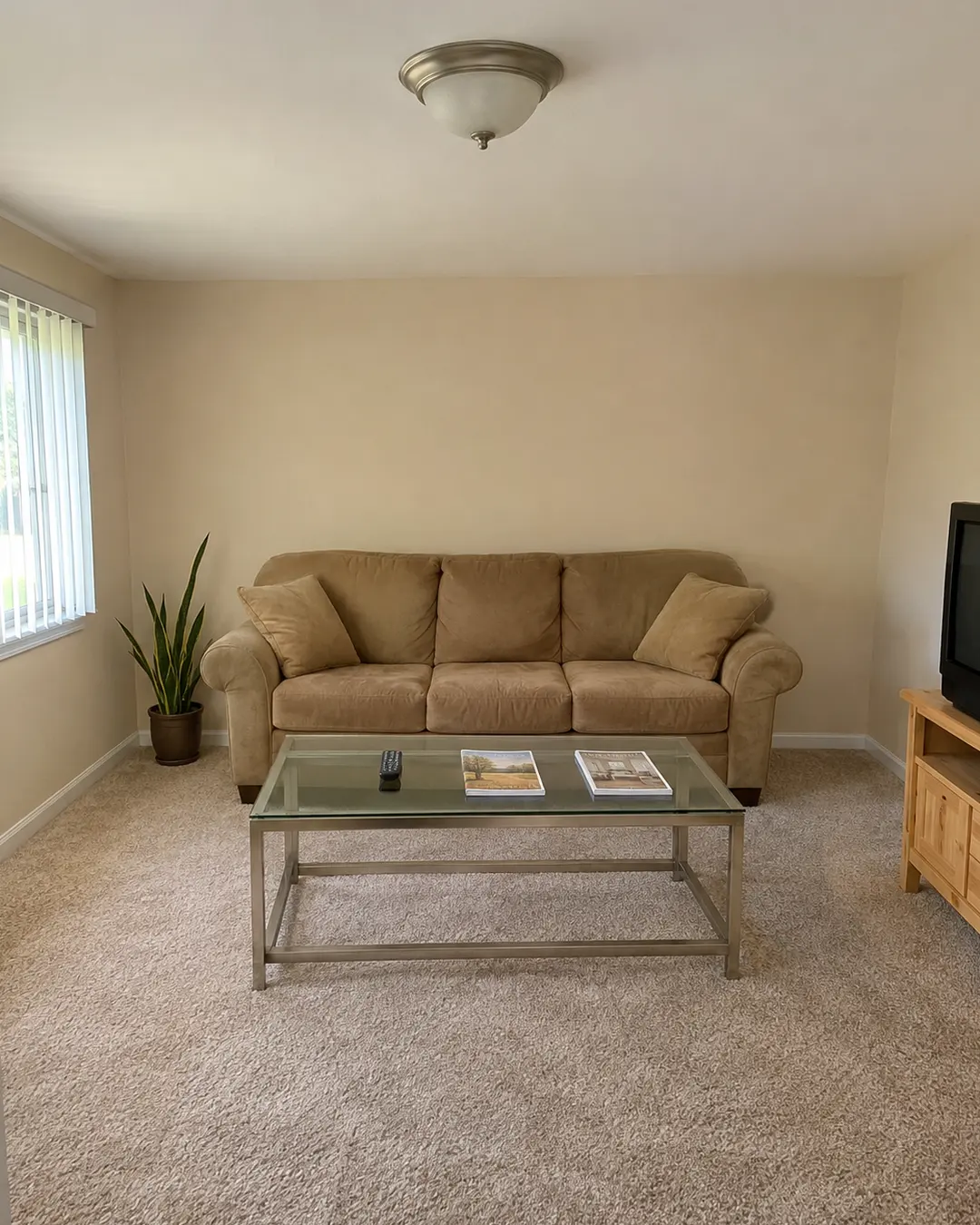
 Before
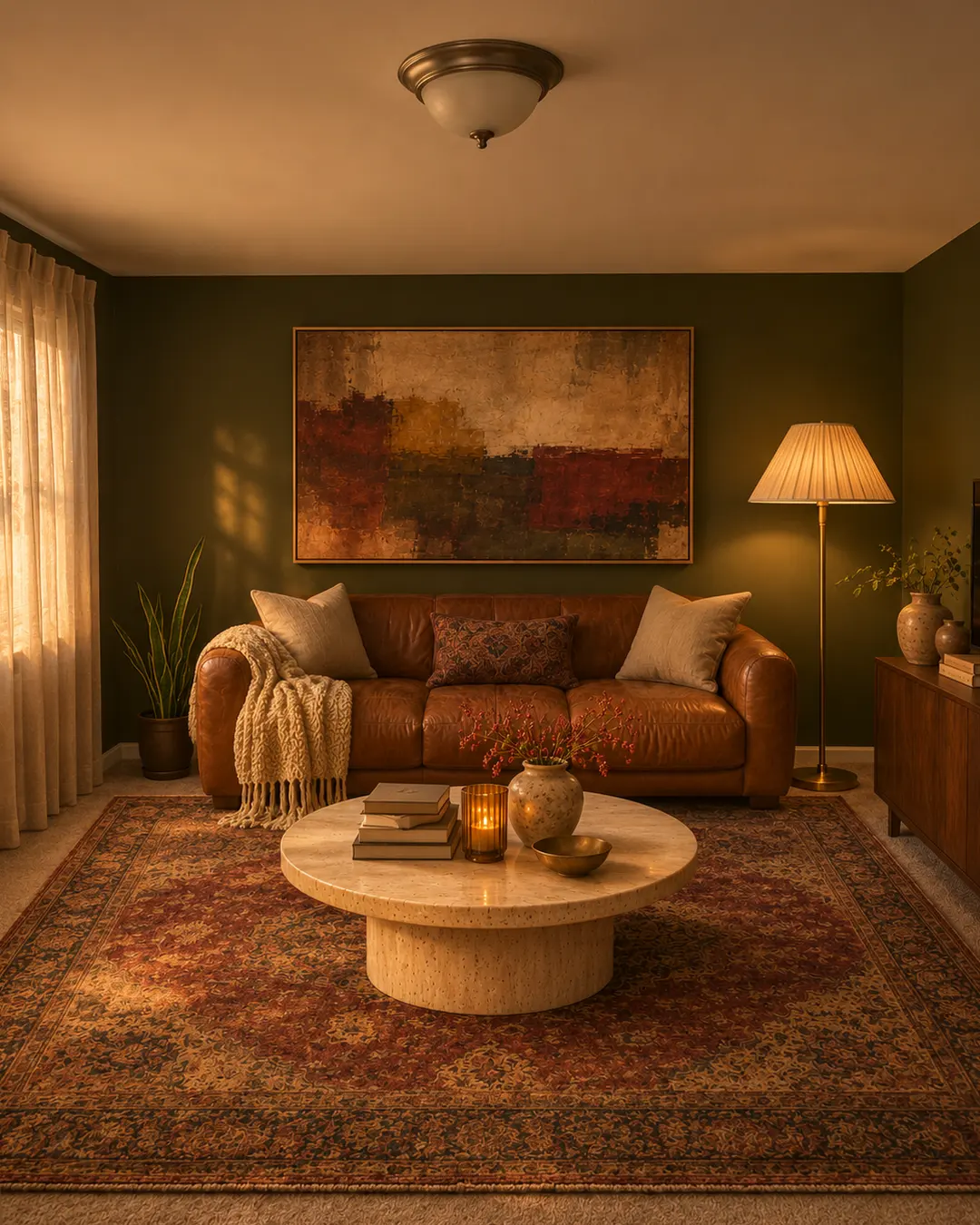
After
Why Style Match exists
Most people already know what they like. They have a board of saved pins, a folder of screenshots, a photo of a friend's living room. What they do not have is a way to see that look in their own room, with their own window on the left, their ceiling, their awkward corner. A beautiful photo of someone else's space is the start of a decision, not the decision, because the question that matters is "would this work here?"
A mood board shows you the ingredients. Style Match shows you the finished room, and it is yours. It follows from what we believe about AI in design, in AI shouldn't design for you: the taste comes from you. You pick the picture that speaks to you, and Idori does the translation work, so the choice stays personal and the result fits the room you actually live in.
How to make your room look like a photo with Style Match
1. Open your room
Take a photo of the room, or open one you already have, or any version of it you have made since. Style Match works on all of them.
2. Attach the photo
Tap the plus button in the prompt box. The menu is headed Style Match: choose where the image comes from: your photo library, the camera, a paste of an image you copied from Safari, Instagram, or Pinterest, or Browse Inspiration to pick one from the library. The image sits in the prompt box as a thumbnail, so you always see what you attached. One image per generation, and you can remove it with one tap.
3. Add your own words, if you want
You can send the image on its own, and Idori redesigns the room in its style. Or add a sentence: "only the colors and the rug", "keep my sofa", "make it lighter than the photo". When your words and the picture disagree, your words win.
4. Send, and see it on your room
Idori matches the style on your photo and saves the result as a new version. The attached image is saved with the result too, so if you retry, the same photo comes back with it, and the room before is always one swipe back in your Version History.
No photo yet? Start from Inspiration
Style Match needs one image. If you do not have one saved, open Inspiration, Idori's library of more than 1,000 example rooms in Idori's 40+ styles, from Japandi and Organic Modern to Dark Academia, Wabi-Sabi, and Bookshelf Wealth. Filter by space and style, read why a room works in its style guide, and tap Try on my space. That one tap attaches the room to your prompt box for Style Match, and if you have not opened a photo of your room yet, Idori asks for one right away.
What carries over, and what stays yours
Style Match moves the style, not the room. Idori reads the attached image as a style reference and edits only your photo.
| From the photo you attach | From your room |
|---|---|
| The color palette | The walls, ceiling, and floor area |
| Materials and finishes: wood tones, metals, fabrics, stone | Windows and doors, where they are and how big |
| The furniture language: shapes, proportions, upholstery | The layout footprint: where the main pieces sit |
| Decor, art, rugs, and plants | The camera position, angle, and framing |
| The lighting mood: warm lamps, daylight, evening glow | Anything you tell it to keep |
The photo does not have to be the same kind of room. A hotel lobby, a restaurant, a kitchen photo for a bedroom: Idori translates the style to the space you are designing, so the bar you loved becomes a living room with the same materials and mood, not a living room with a bar in it.
A worked example: a saved photo, a plain living room
The images at the top of this page show it end to end. The attached photo is an editorial shot of a moody living room: olive green walls, a cognac leather sofa with rounded arms, a faded red and ochre Persian rug, a round travertine table, a brass wall lamp and a pleated floor lamp in golden evening light, a tall window on the right and a herringbone floor.
The room is a plain one: a tan sofa against a beige wall, a glass coffee table, vertical blinds on a window on the left, a frosted dome light in the ceiling, beige carpet. Attach the photo, send, and drag the slider. The walls turn olive, the sofa becomes cognac leather in the same spot, the rug and the travertine table arrive, the light goes warm. And the window is still on the left, the ceiling light is still the dome, the plant is still in the corner, the camera has not moved. The photo's tall window and herringbone floor did not come with it, because those belong to someone else's room.
Style Match with your words, and with Spot Edit
Style Match works alongside everything else in the prompt box. Add words to steer it: your words always win over the picture. Combine it with Spot Edit pins: the attached photo sets the overall direction, palette and materials and mood, while each pin's own instruction or product photo decides that exact spot. So you can say "this whole look, but @1 becomes the sofa I already ordered".
The two kinds of image do different jobs. A Spot Edit reference photo is a specific product for one pinned spot: this lamp, this chair, here. A Style Match photo is a whole style for the whole room: this feeling, everywhere.
Style Match, AI Ideas, a style, or Freeform Prompt: which one to use
Use Style Match when you have seen the look: a picture says it better than words. Use AI Ideas when you know the goal but not the look, "make it cozier", and want five directions with a plan. Use one of the 40+ Styles when you know the name of the style you want. Use a Freeform Prompt when you can describe exactly what you want. They stack: get a direction from AI Ideas, then attach a photo to push its palette, then pin the one piece that is still wrong.
What Style Match does not do
One image per generation. Attach the one that says it best. To blend two looks, apply one, then attach the second on the new version.
It carries a style, not a copy. Idori does not rebuild the other room's walls, windows, or view in yours, and it does not reproduce the exact products in the photo. For one exact piece, pin it with Spot Edit and attach that product's photo.
It is not a shopping list. Idori does not identify where the items in the photo are sold.
A clear image works best. A screenshot full of app buttons, captions, or a tiny room in the corner gives Idori less to read. Crop to the room before you attach it.
It shows, it does not measure. The result is a realistic picture of your room in that style, not a floor plan. Measure before you buy.
Getting the most out of it
- Pick photos taken in similar light. An evening shot will push your room toward evening. If you want daylight, say so.
- Say what to keep. "Keep my sofa and the floor" is the fastest way to make the result something you can actually build.
- Use Favorites as your board. Heart rooms in Inspiration as you browse, then try your favorites one after another and compare the versions.
- Check it with Compare. Drag Compare across the result to see exactly what the photo changed.
- Finish with Spot Edit. When the look is right and one piece is not, pin it and change only that.
Try a photo you love on your own room
Take a photo of your room, attach the picture you saved, or pick one from the Inspiration library. Idori is on iPhone and iPad.
Download IdoriQuestions people ask
Yes. Take a photo of your room in Idori, tap the plus button in the prompt box, and attach the picture you saved, as a screenshot, from your photo library, or pasted. Idori redesigns your room in that style, carrying over the palette, materials, furniture, decor, and lighting mood, while your walls, windows, layout, and camera angle stay yours.
In Idori, open a photo of your room, tap the plus button in the prompt box to attach the image for Style Match, and send, with or without a sentence of your own. The photo is used as a style reference only: Idori edits your room, not the photo, and saves the result as a new version you can compare with the original.
No, and that is on purpose. Idori carries over the style, not the room. It will not rebuild the other room's walls, windows, floor plan, or view inside yours, and it does not reproduce the exact products in the photo. For one exact product, pin that spot with Spot Edit and attach the product's photo.
Yes. When the inspiration shows a different kind of space, Idori translates its style to the room you are designing, so a hotel lobby becomes a living room with the same materials, colors, and mood rather than a living room with a reception desk.
Open Inspiration, the library in Idori. It has more than 1,000 example rooms in Idori's 40+ styles, filterable by space and style, with a style guide, palette, materials, and mood for each one. Tap the heart to save favorites, and tap Try on my space to attach any of them for Style Match in one tap.
Yes. Attaching a photo for Style Match is free in Idori on iPhone and iPad, and so is browsing the Inspiration library.
A Style Match photo sets the style for the whole room: palette, materials, furniture, decor, and light. A Spot Edit reference photo is a specific product for one pinned spot, like a lamp or a chair. You can use both at once: the Style Match photo sets the overall look and each pin decides its own spot.
Yes. Type them in the prompt box with the image attached, for example "keep my sofa" or "only the colors and the rug". When your words and the picture disagree, Idori follows your words.