Version History: Every Version of Your Room, Kept and One Swipe Away
 The Idori team
·
·
8 min read
In Idori, every room you upload becomes a project, and every change you apply becomes a new, numbered version of that room. Version History keeps all of them, in order, in one vertical stack you swipe through like a feed: the original photo at the top, the newest version at the bottom, and every version labeled with the instruction that made it. Nothing you try is lost, so trying things stops feeling risky.
OriginalYour photo, exactly as you took it
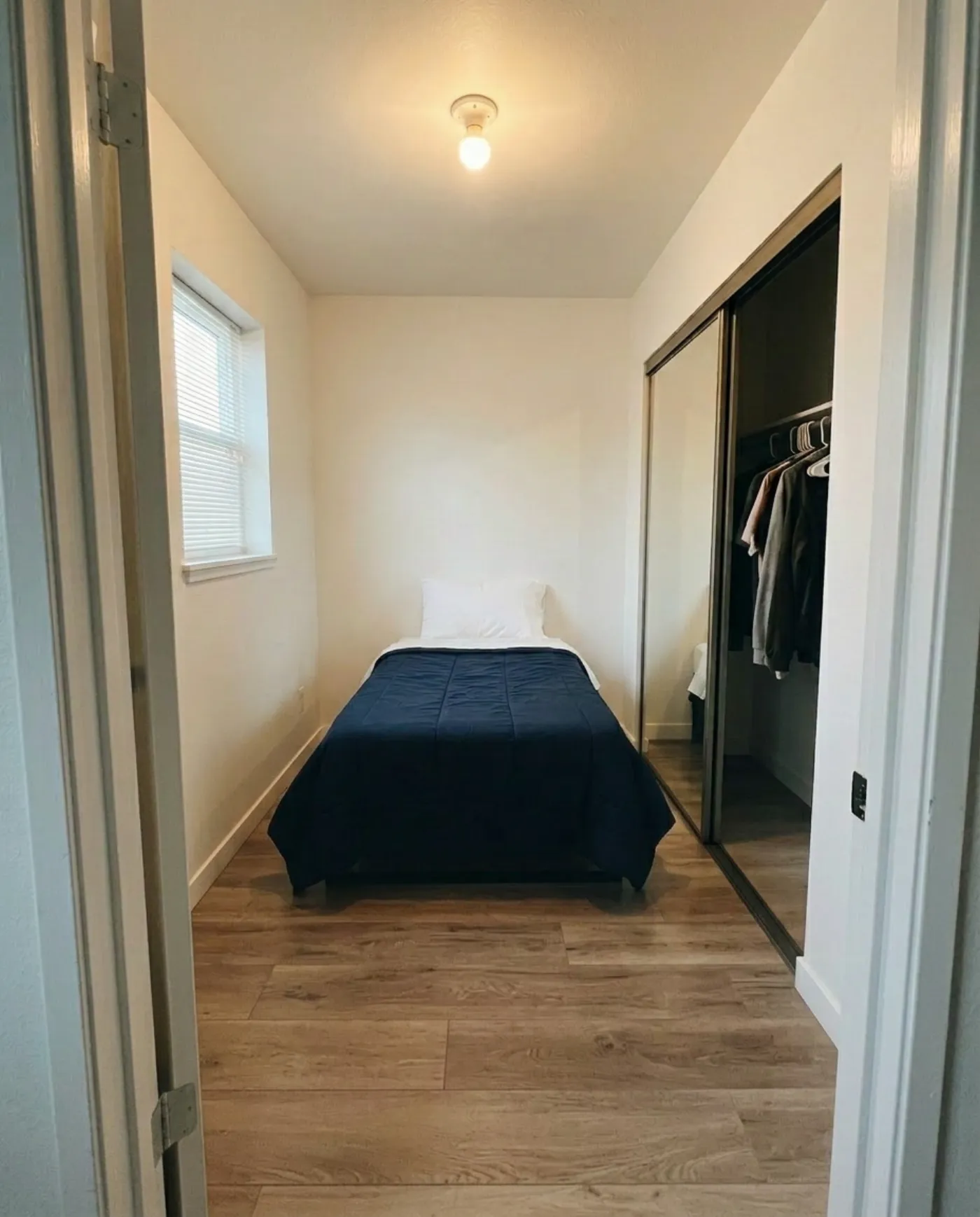
v1Add a large chunky jute rug. Keep everything else.
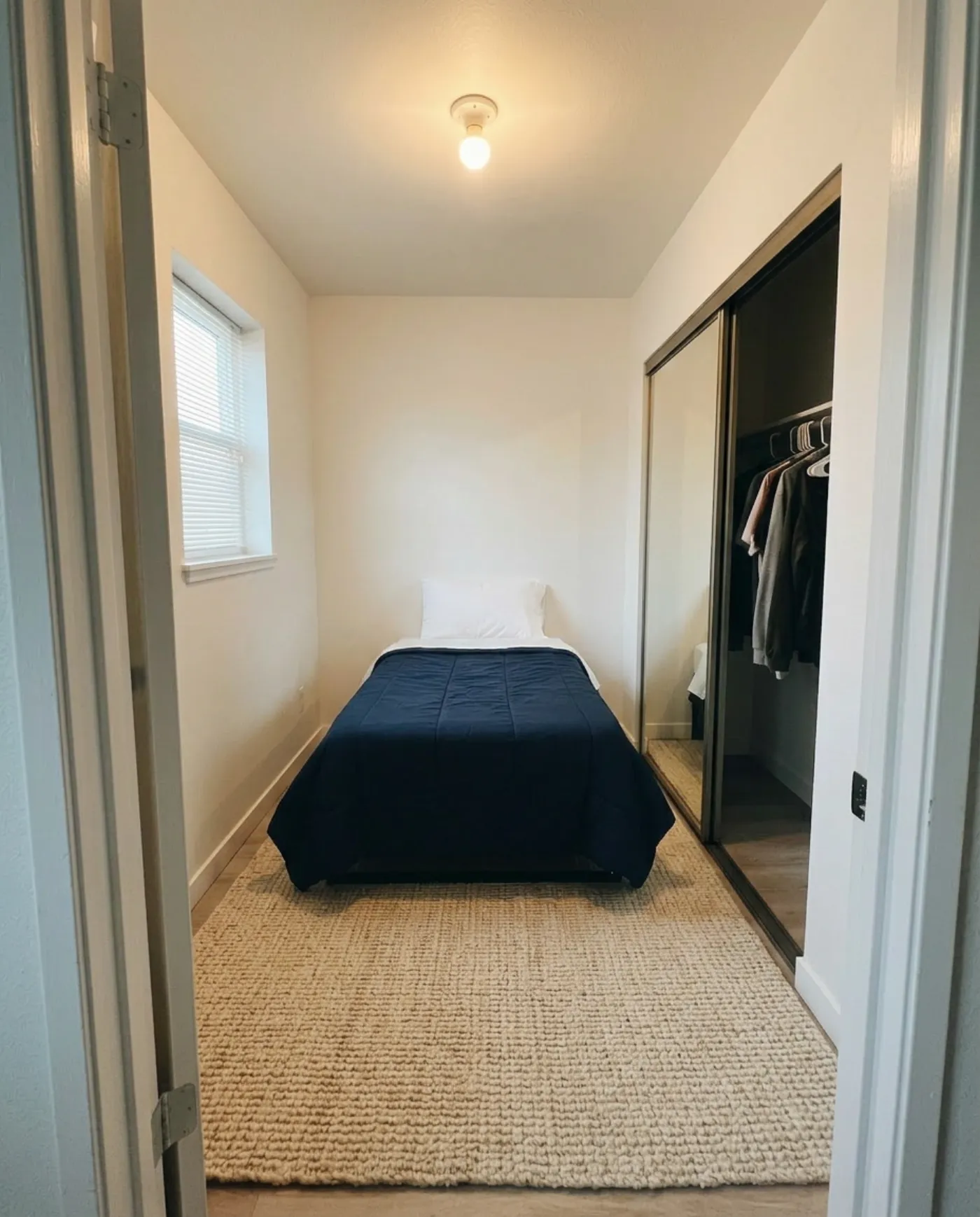
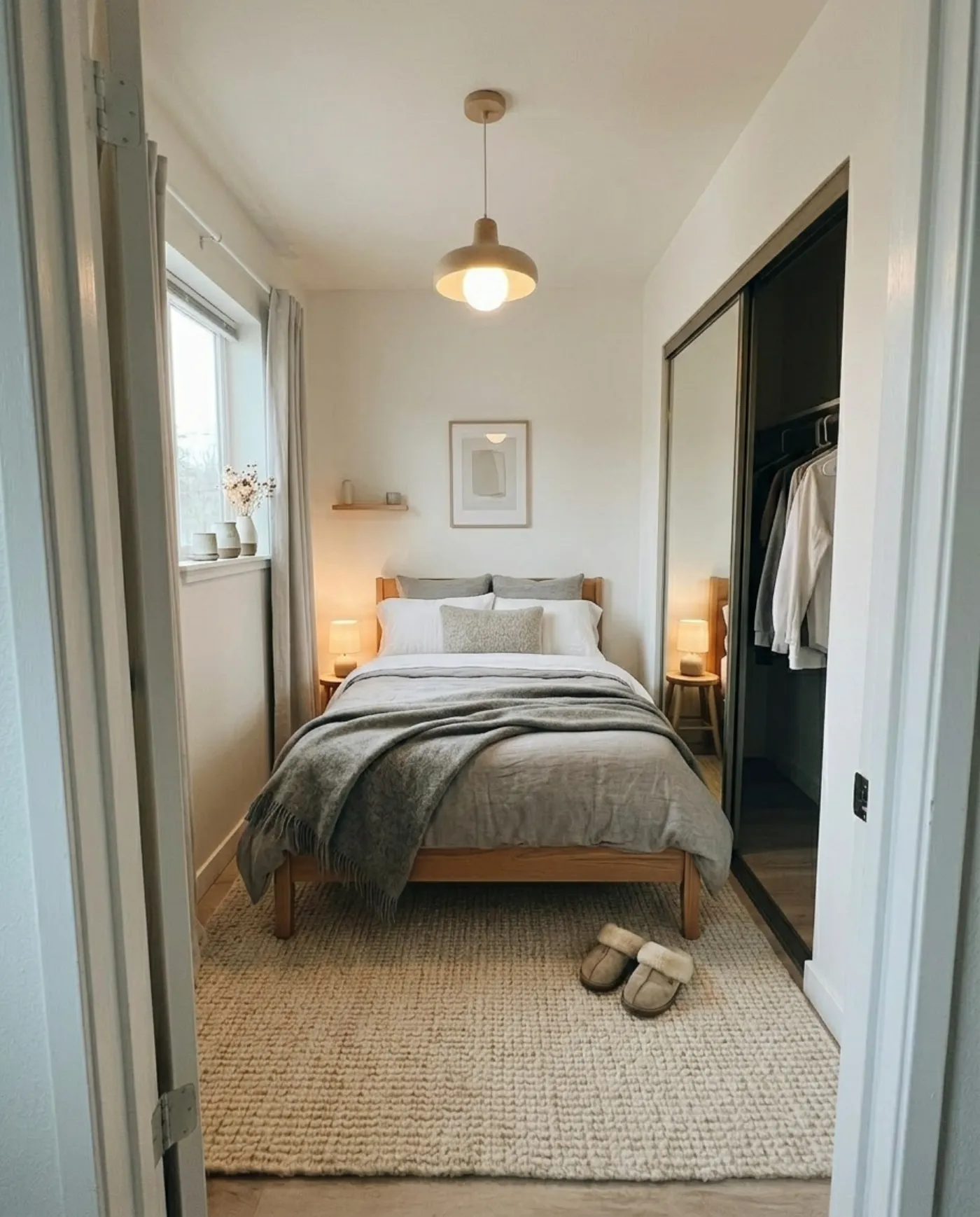
v2Warm Scandinavian, same room and rug
Try it: scroll through the versions
This is how a project reads in Idori. The Original sits at the top, each new version lands below it, and every version carries the instruction that made it. Scroll or swipe inside the frame and it snaps one version at a time, the same way the app pages through your Version History.
Scroll inside the frame
Why Version History exists
The simplest AI design product is upload, prompt, result. It is useful, and it forgets everything. Make three changes and the first result, the one that got the light right, is gone, along with the prompt that produced it. We think that is the wrong model for a room. A room is not a disposable input to a model; it is a project, a sequence of decisions you make over days, and the product should remember them. That idea is the subject of our essay A Room Isn't a Prompt. It's a Project.
Memory changes how people experiment. When every generation feels disposable, you get cautious: you hesitate to change a result you like, because the next one might be worse and you might not get this one back. When every version is kept, you can try the bold idea, keep it if it works, and walk back if it does not. As we wrote in The Cost of Changing Your Mind, going backward should be part of moving forward.
How Version History works
Every room becomes a project
When you add a photo, Idori creates a project for it. The photo itself is the first entry, labeled Original. Projects live in your History, newest first, each with a thumbnail and a count of its iterations. Tap a project to open it right where you left off.
Every applied change becomes a version
Each time a generation finishes, the result is saved as the next version: v1, v2, v3. It does not matter which tool made it. A Freeform Prompt in any language, one of the 40+ curated styles, a direction from AI Ideas, or a precise Spot Edit all land in the same history.
Every version remembers how it was made
Above each image, Idori shows what produced it: your prompt text, the style or idea you chose, or the number of spots you pinned. Weeks later you can still see exactly how you got from the Original to the version you like, and repeat the move in another room.
Swipe through it like a feed
This is the part people notice first. The project is a vertical stack, one full-screen version at a time. Swipe up for the next version and down for the previous one; the page snaps into place with a light haptic tick, and at the top and bottom of the stack it rubber-bands gently instead of stopping dead. There are no thumbnails to hunt through and no menus between you and the previous idea. Going back three versions is three flicks of a thumb, which matters because you will go back more often than you expect.
While a new version is generating, a shimmering placeholder of your room appears at the bottom of the stack. When the result lands, the stack moves to it on its own, so the newest version is always one glance away.
New work always builds on the latest version
Edits stack. Your next Freeform Prompt, style, idea, or Spot Edit is applied to the latest version, so a project reads as one continuous line of decisions. Older versions are kept exactly as they were: you can view them, Compare them, share them, copy them, or Branch from them, but not edit them in place. That rule is what makes the history trustworthy. v2 is always v2.
Retry replaces the latest attempt
If the newest result misses, Retry runs the same request again on the same starting image. When the new attempt succeeds, it takes the place of the one it retried, so a miss does not clutter the history. Retry is only for the latest version; on any older version, the same button becomes Branch.
Managing projects
In History, swipe a project to the right to rename it, or to the left to delete it. Naming matters once you have a few: "living room, warm" and "living room, calm" tell you more than two thumbnails do.
What Version History does with Compare and Branch
Version History is the memory; the other two features are what you do with it. Compare puts any version on a drag slider against the one it was made from, the Original, or any earlier version, so you judge the difference in place instead of from memory. Branch takes any earlier version and starts a new project from it, so a second direction never costs you the first. Together they turn a pile of generations into a design process: explore, react, refine, compare, branch, decide.
What Version History does not do
Older versions are read-only. You cannot apply a new prompt, style, or Spot Edit to an earlier version in place. To continue from an older version, Branch from it.
Retry replaces the latest version. Once a retried result succeeds, the attempt it replaced is removed. If you want to keep the current result, share or copy it before you retry, or make your next change as a new version instead.
You cannot delete a single version. Versions are deleted with their project. Deleting a project removes all of its versions from the app, and there is no undo.
Projects stay on the device you made them on. Projects and Version History are stored in the app on your iPhone or iPad. They are not synced between devices, and there is no web version to open them from a computer.
Getting the most out of it
- One decision per version. A version that changes one thing is easy to learn from; a version that changes five things is not. Spot Edit is built for this: pin up to four spots, and only what you pin changes.
- Let AI Ideas open directions, then keep the good ones. Each idea you apply becomes a version, so exploring a direction costs you nothing you cannot get back.
- Swipe back before you decide. Late in a project, the best version is often not the newest one. A few flicks up the stack is the cheapest design review there is.
- Name your projects. Rename from History so each room and each direction is easy to find.
Keep every version of your room
Start a project from one photo, make a change, then another, and swipe back through all of it. On iPhone and iPad.
Download IdoriQuestions people ask
Yes. Every applied change, whether a Freeform Prompt, a curated style, an AI Ideas direction, or a Spot Edit, is saved as a numbered version of the same project: Original, v1, v2, and on. Each version shows the instruction that produced it. The one exception is Retry: when a retried result succeeds, it replaces the attempt it retried.
Swipe down. A project is a vertical stack of versions, one per screen, and swiping up or down moves one version at a time with a light haptic snap. Older versions can be viewed, compared, shared, copied, or branched.
Not in place. New changes always apply to the latest version, which keeps the history trustworthy. To keep designing from an older version, use Branch: it starts a new project from that version and leaves the original project untouched.
Not individually. Versions are kept until you delete the whole project they belong to. Retry is the only action that replaces a version, and only the latest one.
No. Projects and their Version History are stored in the app on the device where you made them and are not synced between devices. Deleting a project removes all of its versions, and there is no undo.
Idori keeps every version of a room in one project, labeled with the instruction that made it, and lets you swipe back through all of them, compare any version with an earlier one on a slider, and branch from any earlier version. Many AI design apps keep a list of separate generations; Idori treats the room as one project with a history.